The perfect first app for your child to learn and play.

Silly Spin Colors
Silly Spin Colors now includes an AAC Switch Accessible Play mode, allowing players to use an AAC adaptive switch button to play.
In this Switch mode, the accessible switch acts like a tap. When the user activates their switch, it triggers actions on the screen. See below how to set up.
This makes it possible for children with limited motor control to independently explore, play and learn.
For iOS iPad and Andrioid Tablet only.
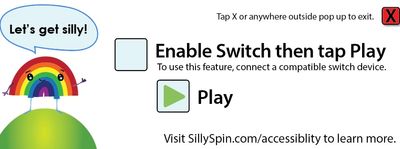
Set Up: How to Set Up a Wireless AAC Bluetooth Switch to Silly Spin Colors
Make sure you have the latest version of Silly Spin Colors installed.
1. Make sure your Bluetooth AAC accessible switch is turned on and in discoverable mode.
If unsure how to use your Bluetooth switch, follow manufacturers instruction.
Examples of Bluetooth AAC switches: iSwitch and RJ Cooper.
2. To connect/pair a Bluetooth AAC switch to your device go to Settings > Bluetooth > Turn on Bluetooth > My Devices > Tap the desired device in My Devices list to connect.
Note: If your Bluetooth AAC switch is already connected to another device, make sure to disconnect it or it will not connect to new device.
3. Open Silly Spin Colors, select the Switch mode, then select enable Switch.
4. Tap Play.
Switch Accessibility play will begin automatically.
3. You can go to the following Apple Support links for more information.
Apple Support Option 1
Apple Support Option 2
Apple Support Troubleshoot

Set Up: How to Set Up Wired AAC Switch using a Bluetooth Interface to Silly Spin Colors
Make sure you have the latest version of Silly Spin Colors installed.
1. Connect wired AAC switch through a compatible interface, then game ready to play right away.
Examples of Bluetooth interface: Tapio used with a wired AAC switch such as a Banana Switch.
2. Open Silly Spin Colors, select Switch mode, then select Enable Switch.
3. Tap Play.
Switch Accessibility Play will begin automatically.
